Display driver is the software that enables your operating system to effectively communicate with your graphics card. It manages the purpose of images and video rendering, and performance is smooth in games and applications, and enables your system to use the entire ability of your GPU. Display drivers may however become outdated, corrupted or incompatible with newer updates as time progresses, causing performance problems, screen glitches or even crashing of the system.
In case you have graphics issues, are going to upgrade your graphics card, or are just having issues with driver conflicts, it is crucial to understand how to remove display driver. We will go through all the methods in this guide, starting with the basic uninstallation process and more powerful ones such as Display Driver Uninstaller (DDU). These steps will help you guarantee a clean un-installation of your old drivers and an easy installation of new drivers.
Table of Contents
Why You Might Need to Remove a Display Driver
The reason why you are required to uninstall a display driver is something that will guide you to use the most appropriate way of removing a display driver. A frequent cause is driver corruption or incompatibility. When the drivers are corrupted, they may result in blue screen errors, graphical bugs, or a crash in the middle of the game or work. Another cause is the need to prepare a clean installation. It occasionally happens that putting a new driver over an old driver may cause conflicts and a complete uninstall guarantees a clean restart.
Even changing GPUs, e.g., switching NVIDIA to AMD or the reverse, needs to remove the current drivers or not to conflict with them. Furthermore, when your system is affected by flickering screens, failure to update drivers, and other display problems, re-unloading the existing driver can usually resolve the problem and get your computer back on track.
Preparing to Remove Display Drivers
Prior to commencing the process of uninstalling display drivers, you need to follow some preparation measures, in order to prevent possible difficulties. To begin with, make a system restore point. This will make sure that in case something goes wrong, you can restore your system to the former state. Next, identify your GPU model. This will assist you in choosing the appropriate driver and removal program by knowing whether your card is NVIDIA, AMD or Intel.
Lastly check that you are an administrator, most of the driver removal procedures will also need administrator privileges. These precautions will spare you a lot of time and headaches and make the removal and reinstallation process run smoothly.
Removing Display Drivers Using Device Manager
The simplest and most popular way of uninstalling display drivers is via windows device manager. The Device Manager will enable you to see all devices installed in your computer and maintain them effectively.
First, press Windows + X and open the menu, choosing Device Manager. When the Device Manager appears, click into the Display adapters category to see your installed GPU. Click the right hand side of your graphics card and choose to uninstall the device. A dialog box will be displayed; ensure that you check the box that states Delete the driver software for this device. Restart your computer and verify your selection.
This approach is adequate to most users and eliminates most driver files. After a restart, it is also important to have your system reset so that it can automatically install a default driver in case of the deleted one.
Uninstalling Through Settings
Besides the Device Manager, there are display drivers that can be uninstalled using the Windows Settings app. This is especially handy with drivers who have been installed as part of a software package, which can contain control panels or utilities.
In order to apply this method, press Windows + I to get to the settings and then go to Apps to Apps and features. You can find the software of your manufacturer of GPUs in the list, e.g. NVIDIA, AMD, or Intel. Click on the program and choose Uninstall. The removal process should be done using instructions on the screen.
This way will make sure that any software related to your GPU is deleted, not only the driver files. It especially works in cases where the normal uninstallation using Device Manager is not effective in removing bundled programs.
Using Display Driver Uninstaller (DDU)
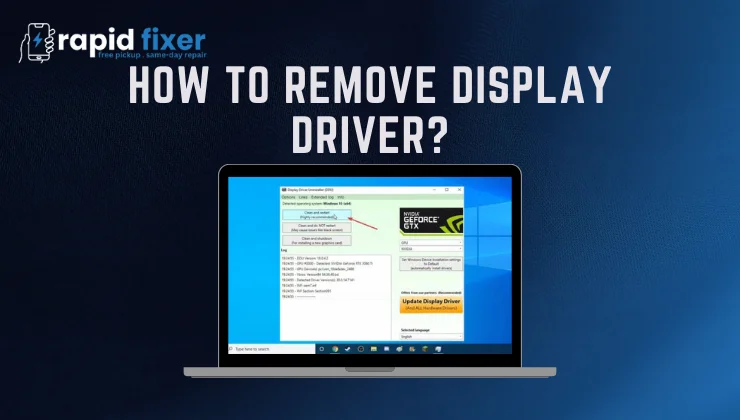
Display driver uninstaller (DDU) is a specialized tool that helps remove all the traces of the GPU drivers, thus allowing users with more specific requirements. This also contains files, registry entries, and other hidden data that may disrupt the installations of new drivers.
DDU particularly comes in handy when changing between brands of the GPU, or when you are having driver issues. The first step to use DDU is to download the program through a reliable source like Guru3D. Next, restart the computer in the Safe Mode so that windows does not load the current driver when removing the driver. Open DDU, choose your graphic card manufacturer and press Clean and restart. The system will erase any traces of the driver and restart into normal windows mode.
Installing DDU ensures that the environment is clean to install new drivers and even avoid crashing multiple times, or unsuccessful updates. It is generally suggested to be used by both advanced users as well as those who are having long-running driver issues.
Removing Drivers Using Command Prompt
To the user who is familiar with advanced tools, removing drivers can also be done through the command line. This technique comes in handy especially when Device Manager or generic uninstall processes fail to uninstall driver packages. To execute the following command,
Open Command Prompt with Administrator and type the following command:
pnputil /delete-driver <driver.inf> /uninstall /force
Substitute the <driver.inf> with the exact driver file name. This command makes Windows delete the specified driver in the system, including any package related to it. This is a highly effective method and is only advisable to be used by experienced users because misuse of the commands can interfere with system stability.
Installing Fresh Display Drivers After Removal
After the old driver has been uninstalled, it is important to install the most current version so that your system can be running at its best. Go to the official site of your graphics card manufacturer: NVIDIA, AMD, or Intel and download a drive corresponding to your graphics card and operating system.
Install the installer and answer the prompts until the installation is complete. To complete the setup, restart your computer after the installation is done. Removing and then installing new drivers does not only restore normal functionality but can also enhance its performance, fix bugs and make new features available through the GPU manufacturer.
Common Post-Removal Issues and How to Fix Them
You should expect some minor problems even after a successful removal of a display driver. Windows can install a basic display driver automatically and this can temporarily limit its performance. The resolution of screens can also vary, and the display settings should be adjusted. In case the removal of the GPU is not met with the detection, re-installing the driver manually through the manufacturer site will solve the issue.
With these steps, you are guaranteed of a stable system and functionality of your graphics card even after the drivers have been uninstalled.
Best Practices for Display Driver Management
It is important to keep your display drivers in good condition in order to enjoy a smooth computing experience. Drivers should be downloaded on official manufacturer websites to be safe and compatible. DUD should be used when normal uninstallation procedures cannot be completed or when changing brands of the graphics card. Do not delete any drivers when there is an update of Windows, which may lead to system instability. Also, it is always good to have a backup of your current driver, so that you can roll back to the old version in case the new one proves to be a problem.
It is recommended that you update your drivers regularly, and in-between these best practices will ensure your work and gaming applications run smoothly.
Conclusion
Learning how to remove display driver is a vital practice towards ensuring that a PC performs at its right levels and remains stable. Need to troubleshoot your graphics card, perform a graphics card upgrade, or carry out a full driver clean install? This guide has all the steps you need to follow to make the process safe and full.
With the combination of standard uninstallation, apps removing, advanced tools, such as DDU or command line, you may save driver conflicts, recapture the stability of the system, and experience a smooth graphics performance. By always being cautious like creating a restore point and backing up your system before making any changes, you will have an uncomplicated driver management procedure.
FAQs About How to Remove Display Driver?
Can I remove display drivers without using Safe Mode?
Yes, but running in Safe Mode guarantees that windows does not interfere with the uninstallation process making it safer and more comprehensive.
How do I completely remove NVIDIA drivers?
To fully remove it, you can use the Device Manager or Display Driver Uninstaller (DDU). DDU is suggested when a change of graphics card brand occurs, or in stubborn drivers.
Will uninstalling a display driver harm my PC?
No, unless you take good directions. It is normal to find that windows temporarily switches to a simple display driver.
Can I reinstall a driver after using DDU?
Absolutely. DDU is a tool that is created to prepare your system to cleanly install new drivers.