When your screen seems too zoomed in, or untidy, or just irritating to work with, you might be asking yourself how to make display smaller in your computer. It is a highly prevalent problem primarily following Windows updates, attaching an external display, or altering system settings unintentionally. The larger the display, the more difficult it is to multitask, read comfortably, or have the content fit on the screen appropriately.
You will be taught how to make the display smaller on Windows using the appropriate system settings in this detailed guide. Whether you want to make text smaller, reduce the size of apps, correct oversized icons, or scale down without losing fidelity, this article will take you through each process step-by-step.
Table of Contents
What Does “Making the Display Smaller” Mean in Windows?
When users are asking how to make my display smaller, they are normally talking about the size of elements displayed on the screen and not the physical size of the monitor. Windows has multiple settings that dictate the size of content and when used improperly, it can result in a display that is too big.
In windows, display size is determined by screen resolution, display scaling, text size and zoom levels. Display scaling adds or removes the size of applications and interface components. Screen resolution determines the number of pixels in the screen. Text size is applied to written data, whereas zoom can be utilized with browsers and selected applications.
Knowing these differences will guide you in making the right adjustment other than using trial and error to move the settings around and end up making the picture blurred and distorted.
How to Make Display Smaller on Windows Using Display Scaling
What Is Display Scaling and Why It Matters
The most significant setting here is display scaling to learn how to make windows display smaller. It also defines the size of the large apps and icons, menus and system elements as per your screen resolution. When scaling is too high, then it will appear oversized.
Windows tends to scale automatically on high-resolution screens to enhance readability, but at the expense of screen real estate.
How to Reduce Display Scaling Step by Step
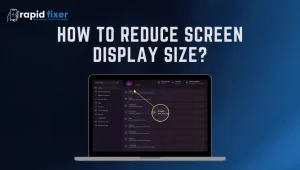
To scale down the display, open up settings, move to the system and click display. You will find down in the scale and layout section a scaling percentage of either 125 or 150. By reducing this value to 100 percent we will instantly shrink everything on the screen.
It is the safest and most efficient solution to most users because this approach maintains text sharpness and fits more on the display.
How to Make the Display Smaller by Changing Screen Resolution
Understanding Screen Resolution
Screen resolution refers to the number of pixels your screen has. A greater resolution crams more pixels into the same size screen, and results in smaller and more detailed items. When your resolution is too low, you may find the display stretched and excessively large.
Adjusting Resolution the Right Way
Changing resolution: To adjust resolution, firstly, go to settings and then go to the system and then to the display and find the display resolution option there. Always select the one that is denoted as Recommended. This makes the display sharp and automatically makes on-screen elements smaller.
Reducing the resolution is not advisable unless it is required and may result in blurred text and low clarity. How to Resize My Display to a Smaller Size without Interfering with the Apps.
How to Make My Display Smaller Without Affecting Apps
Reducing Text Size Only
It is not necessarily apps or icons, but text that is a problem. When the font of letters appears to be too big and everything seems to be okay, the change of size is the most effective method.
Go to Settings, then to Accessibility, and choose Text size. A rightward movement of the slider can be used to shrink the font size in Windows which does not alter the size of apps or windows. The approach best suits users who would like more content on the screen but leave interface elements the same.

How to Make the Display Smaller in Browsers and Apps
Using Zoom Controls
The problem is usually restricted to a browser or an application in most situations. Browsers such as Chrome, Firefox and Edge have zoom controls that can be set to use keyboard shortcuts. The minus key in combination with Ctrl will zoom out and Ctrl + zero will set the view to default.
The technique can be employed when a webpage or document seems excessively large though windows display configurations are appropriate.
Using Windows Magnifier to Adjust Display Size Temporarily
Windows also has an inbuilt Magnifier tool which is accessible, though it may also be used to reverse unintentional zoom changes. When something appears too big, press windows key and minus to zoom out and windows key and escape to come out of tool.
This is an expedient measure which must not be used in place of proper display or scaling changes but may prove useful when an emergency arises.
How to Make Desktop Icons and Layout Smaller
The presence of a messy desktop can create the impression of a large display. Windows enables you to resize desktop icons without any system settings. On the desktop, right click, choose View, then Small icons. This automatically opens up more space and allows better organization.
Display scaling can also be reduced, leading to a smaller taskbar that can also enhance the usability of the screen, particularly on smaller monitors.
Common Issues When Making Display Smaller and How to Fix Them
Blurry text when changing settings is one of the frequent problems. This normally occurs when a non-recommended resolution or custom scaling value is applied. The problem usually gets solved by reverting to the suggested resolution.
There is also the problem when text is too small when scaling is reduced. In this instance, balance is achieved by simply displaying the text size using Accessibility settings.
There are also different behaviors of external monitors. Windows has the ability to scale individually per monitor, so it is important to make sure that you are always changing a specific display.
Best Practices for Making Windows Display Smaller Comfortably
The most effective solution is to change display scaling, and then resolution, when needed. The text size must be changed separately to be comfortable and the zoom option should be applied in case of app-specific problems.
Resolution should not be reduced to minimize the content since this lowers quality. Rather, use scaling and accessibility options that are suited to this purpose.
Conclusion
Learning how to make display smaller in windows would enable you to comfortably dominate your workspace. You need more information on the screen, or better readability or correct sizable components, Windows offers a wide range of options to establish the right balance.
With a few display scaling adjustments, the right resolution, and trial and error with the text size, it is possible to provide a comfortable and effective reading experience without a reduction in quality. You only need to spend a few minutes playing around with these settings to discover what best suits your screen and your workflow
FAQs About How to Make Display Smaller on Windows?
Why does my screen look zoomed in on Windows?
This is typically because of high display scaling, low resolution, or application-specific zoom options.
What is the safest way to make the display smaller on Windows?
The safest way is to reduce the display scaling to 100 percent and then leave the suggested resolution.
Can I make my display smaller without hurting my eyes?
Yes. Turn the scaling up or down, then fine-tune the text size to make it readable.
Does Windows 11 handle display size differently from Windows 10?
The settings location is a bit varied but the functionality remains the same in both versions.