The display resolution on your monitor determines everything that appears on your screen including the clarity of your text and clarity of your image as well as workspace organization. Regardless of whether you are at work, in school, making a design, or playing a game, understanding how to adjust display resolution can increase productivity and general visual comfort.
Blurred text, oversized icons, or oversized or undersized screens are some of the challenges many users experience. These problems usually arise due to the wrong setting of the resolution. Along with resolution settings, many users also need to Adjust Display Brightness for better visibility, especially when switching between work, gaming, or design tasks. This guide will show you how to change screen resolution in Windows 10, Windows 11, and macOS, how to use multiple monitors, and how to fix common issues.
Table of Contents
How Display Resolution Works
Understanding Native Resolution
Each screen has a native resolution, which is the number of pixels constructed into the screen. The native resolution gives the best display quality in terms of clarity and accuracy. Once you switch to lower resolution, your screen extends the image to fit the screen and this tends to blur or distort the image.
What Is Display Scaling?
Scaling determines the appearance of large or small text, icons, and menus, not the number of pixels on your screen. Scaling is frequently required by high-resolution monitors such as 4K or Retina, since UI elements can appear too small. Scaling allows you to stay sharp and fine-tune visual comfort.
How to Adjust Display Resolution in Windows 11
Opening Display Settings
In Windows 11, the first step to changing your resolution is through the settings menu. It has a fast shortcut of Windows + I. Then go to System and Display. All the choices that manage the screen size, layout, scaling, and resolution are in this section.
Changing the Resolution
After entering the Display panel, scroll down to Scale and Layout. A dropdown labeled Display resolution will be found. Windows will automatically indicate the recommended (native) resolution of your monitor. Installing this will provide the greatest transparency. Once this has been chosen, Windows will require you to validate the changes. When the display appears right, select Keep changes.
Advanced Resolution Options
Users may require custom resolutions or older aspect ratios. Windows has a sophisticated panel of setting where you can view further display settings. Display menu, Advanced display, Display adapter properties. You can find resolutions that are supported by your graphics hardware in this window; in it, choose List All Modes.
In case the default settings do not suffice, you can use your graphics card tool as the NVIDIA Control Panel, Intel Graphics Command Center, or AMD Radeon Software to make your own resolutions or change refresh rate.
How to Adjust Display Resolution in Windows 10
Accessing the Display Panel
Windows 10 also offers easy route towards changing the screen resolution. You can right-click on any part of your desktop and select Display settings, or use the Settings menu:_ Settings System Display. It has the same layout as Windows 11, hence easy to navigate.
Selecting the Correct Resolution
In the Scale & Layout tab, choose your desired resolution dropdown. Windows suggests the best results by using the native resolution. Once you make the resolution, a preview will appear and the windows will prompt you to confirm that the changes are permanent before saving them.
Driver-Related Resolution Issues
When the available resolution options seem small or wrong, the problem is most likely to be outdated display drivers. Re-enabling resolutions that are missing can often be restated through Windows Update or the Device Manager or even by the manufacturer of the graphics card.
How to Adjust Display Resolution on macOS
Finding Display Settings on Mac
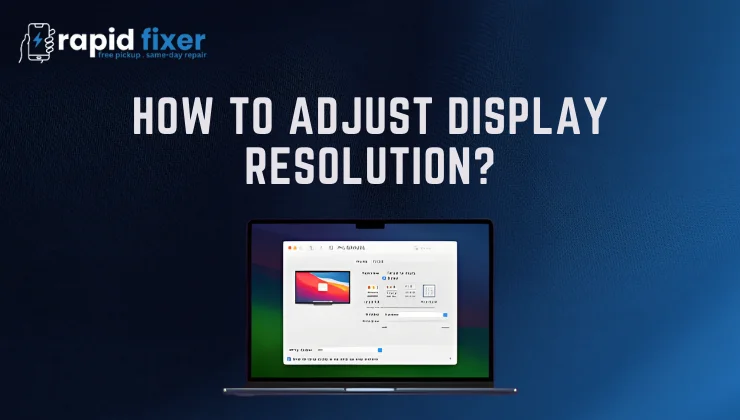
It is equally easy to adjust resolution on a Mac. Begin by clicking the Apple menu () and selecting System Settings. In the sidebar, choose Displays. Depending on your version of macOS, your Mac will display resolution thumbnails or a list.
Choosing a Resolution or Scaled Mode
Mac computers frequently have scaled resolutions instead of pure pixel-based ones, particularly on Retina displays. When looking at the choices, select a resolution that is neither too sharp nor too blurry. Passing the cursor over a thumbnail shows the precise pixel resolution.
MacOS also lets you adjust individual monitors, should you have more than one display. Just choose the monitor in the list and assign a different resolution to each.
Handling Unsupported Resolutions
When you accidentally pick a resolution your screen is not capable of showing, macOS will revert after a few seconds. Where in a few instances the screen remains black, a restart on your Mac or a start up on the Safe Mode enables you to rectify the problem.
How to Adjust Resolution for Multiple Monitors
Selecting the Right Display
Multi-monitor and dual-monitor configurations demand the choice of the specific monitor, followed by the settings customization. Both windows and macOS have numbered monitor icons. Click a display which you desire to alter and then choose a resolution. This aids in preventing any difference between settings or various text sizes on different screens.
Using Native Resolution for Each Monitor
In the case of a multi-monitor setup, each monitor is preferably supposed to be operating at its native resolution. This gives the most distinct images. Scaling can be used to ensure that elements of the UI look the same in devices when displaying screens of varying resolutions e.g. a 4K external monitor with a 1080p laptop.
Cable and Hardware Considerations
Hardware sometimes creates resolution limits. Earlier HDMI cables might not be 4K/or above refresh rate. DisplayPort cables can be better in multi-monitor operation, and the right cable is likely to correct resolution detection problems.
Common Resolution Problems and How to Fix Them
1. Missing or Limited Resolution Options
This normally indicates old or absent GPU drivers. Restoring full-resolution profiles is typically achieved by updating the driver via Windows Update or downloading it directly through Intel, NVIDIA, or AMD.
2. Blurry Screens After Changing Resolution
When running at non-native resolution, blurriness occurs. The image must be stretched or scaled onto the display, making it less clear. This is normally corrected by going back to the native resolution or scaling.
3. Monitor Not Detecting Proper Resolution
Bad cables or cables not compatible with your system may also have your system showing only low-resolution options. This is usually solved by switching to a better quality HDMI or Displayport cable. Check also that the settings of the monitor itself are properly set.
4. Screen Goes Black After Resolution Adjustment
This occurs when the resulting resolution is not supported. A majority of operating systems will undo the changes automatically, but otherwise, you can restart your system or go into Safe Mode so that you can reset to a stable resolution.
Best Practices for Selecting the Right Resolution
Always Prefer Native Resolution
Native resolution is preferable to sharp image and clarity. It makes text, icons, and images as crisp as possible.
Use Scaling Instead of Lowering Resolution
On large-DPI displays, reducing the resolution can result in a blurred display. Alternatively, change the scaling percentage. This makes the interface bigger, but retains its sharpness.
Match Resolution to Your Workflow
Gamers can reduce the resolution to improve performance but graphic designers might need high resolutions to adapt the workspace. Select what suits your needs the best without losing any clarity in vain.
Keep Your Drivers Updated
Periodically updating display drivers is useful to ensure compatibility, provide new resolution choices and avoid display bugs.
Conclusion
Learning how to adjust display resolution on and off will enable you to make the most out of your monitor, be it at work, producing, studying or playing. Getting the right solution means being able to see better, less of the strain on the eyes and your system shows what the manufacturer wanted to be seen.
Get sharp, comfortable, and keep drivers up-to-date: either stick to your native resolution, scale, or update drivers. Following the steps in this guide, you will have the ability to realize the ideal windows, macos, and multi monitor screen setups.
FAQs About How to Adjust Display Resolution?
How do I change my screen resolution in Windows?
Click Open Settings, System, Display, scroll to Display resolution, select a resolution, and click Keep changes to save.
Why is my display blurry?
When the screen is blurred, then you are not operating at the native resolution of the monitor. Going back to the suggested solution normally resolves the issue.
Why can’t I find higher resolution options?
The lack of display drivers or inappropriate cables might restrict the resolutions. It is often fixed by updating the drivers, or by changing the connection cable.
How do I adjust resolution on a Mac?
Click on Apple Menu and System settings, then on Displays, and select a resolution or use a scaled option according to your preference.
Why is everything tiny on my 4K screen?
Since 4K displays contain a large number of pixels, UI items become smaller. It is possible to increase the scaling percentage (125, 150, and so on) so that nothing becomes readable without reducing the resolution.