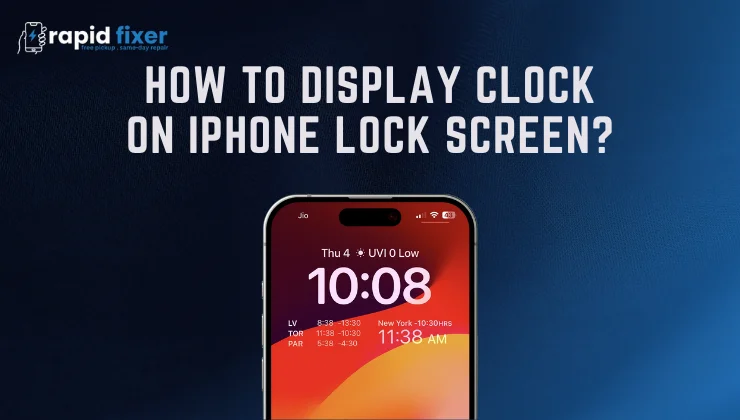
One of the most useful features of your iPhone is the clock on your lock screen that lets you know the time without unlocking the phone. More recent iOS releases have made the lock screen incredibly customizable, allowing the user to customize the font, color, style, and even display the clock in landscape (sideways) mode using a special feature called StandBy.
In this step by step manual, you will know how to display the clock on your iPhone lock screen lock screen, how you can customize your clock display, and how to display clock on iphone lock screen sideways to use at your desk or bedside.
Table of Contents
Understanding the iPhone Lock Screen Clock
The default settings on any iPhone show a big digital clock at the top center of the lock screen. The clock will be easy to read and will automatically change size based on notifications, any widgets, and the depth effects of wallpaper. Since iOS 16, Apple has provided more sophisticated lock screen customization, and with iOS 17, StandBy mode, where the clock can be seen in a large horizontal format, has been introduced.
The lock screen time can now be customized to look good and useful, with the ability to resize, recolor and integrate with other widgets.
How to Display Clock on iPhone Lock Screen
The clock automatically appears when you tap the screen or press the Side button to wake your iPhone. In case you want to customize or reconfigure it, you can do it using the lock screen editor.
Accessing Lock Screen Customization
Press and hold anywhere on the lock screen until the customization interface comes up. This will display your current lock screen types. Click on the Customize button of the one you wish to edit.
Editing the Clock Style
Tap directly on the clock. There will be a panel that will allow you to edit the font style, thickness and color. You may choose the bold type to ensure visibility or the thin elegant type to achieve the minimal look. The color may be coordinated with your wallpaper or a maximum contrast choice.
Once you have chosen a style, you can use Tap Done to save the changes. Your new design will now show the clock on your lock screen.
Adding and Managing Clock Widgets
Apple provides you the ability to configure widgets below the main clock. Other time related information can be displayed using these widgets, e.g., world clocks of other cities or an analog clock face.
Using World Clock Widgets
Go to the lock screen customization screen, touch the widget area beneath the main clock and choose the Clock widget. You can then select a city and show the time of that city in addition to your local time. It is particularly handy when one has to deal with international customers, or relatives who are in a different time zone.
Adjusting Layout for Better Visibility
When your clock seems to be too small or cluttered, delete unneeded widgets. An uncluttered design allows the main clock to shine through and be easily read at a glance.
Customizing the Clock Appearance in Detail
Changing Font and Weight
Apple provides a variety of fonts with varying levels of thickness. Bold fonts should be used during night or when the phone is farther or on a table or a stand.
Changing Clock Color
The readability can be enhanced by choosing a vivid shade on a dark wallpaper. Dark colors, however, are effective in light backgrounds. The idea is to preserve a strong contrast between the wallpaper and the clock.
Using Depth Effect with the Clock
There are wallpapers in which the subject of the image can be slightly overlaid on the clock to produce a stratified effect. This gives it a modern appearance but needs to be applied sparingly to not cover the time.
How to Display Clock on iPhone Lock Screen Sideways
The query on how to display clock on iPhone lock screen sideways is used by many users since they wish their iPhone to act as a bedside clock. The default lock screen does not automatically cycle to landscape mode. Instead, Apple offers a StandBy mode feature to do so.
What Is StandBy Mode
StandBy mode converts your iPhone into a smarter screen when it is on charging and lying horizontally. This mode displays big clockfaces, widgets or photos, ideal to use at the desk or nightstand.
Enabling StandBy Mode
Go to Settings, and select Standby and enable the feature. When switched on, plug in an iPhone to a charger and place it in landscape mode.
Viewing the Clock in Landscape
Once the phone is placed in its side position, tap the Side button to open up the screen. StandBy interface will be displayed. There is an option of swiping to select various types of clocks such as large digital clocks, analog clocks, and world clock layouts. Here is how to make this clock appear sideways in your iPhone lock screen.
Limitations of Sideways Clock Display
The sideways clock works only in charging with StandBy mode enabled. When one just turns the device sideways, the normal lock screen is not rotated freely. This is done so that the battery life can be maintained and unwanted rotation of the screen can be avoided when the phone is in your pocket or in your hand.
Common Problems and Their Solutions
Clock Not Showing in Landscape
In case the clock is not shown sideways, then make sure that StandBy is turned on in the Settings, the phone is powered on, and the device is in a real horizontal position.
Clock Too Small or Hard to Read
Change to a heavier font and use a high-contrast color. Also, get rid of any superfluous widgets which can shrink the main clock.
StandBy Mode Not Activating
Make sure to update your iPhone to the most recent iOS version and ensure that your model has StandBy. It can also be helpful to restart the device in case the feature does not activate immediately.
Best Practices for a Clear and Stylish Lock Screen Clock
A plain, dark wallpaper with a bright clock color is better to see, particularly at night. It is best to use bold fonts when you can see the time at a distance. When you use your iPhone as a bedside clock, a StandBy mode and a stable stand will provide an optimal experience with sideways clock.
Conclusion
It is simple to learn how to display clock on iphone lock screen, but the customization can be much more advanced than the default look. You can modify the font, color and style of the clock, add the world clock gadgets and even turn your iPhone into a giant sideways clock via the StandBy mode.
The lock screen clock is always present and personalizable to regular usage. StandBy mode is the standard and most useful mode in landscape viewing. With all these functions, you get a customizable and easy-to-read clock on your iPhone both in portrait and landscape modes.
FAQs: How to Display Clock on iPhone Lock Screen
How do I make the clock visible on my iPhone lock screen?
All iPhones default to displaying the clock on their lock screen. To customize it, long-press the lock screen, and then tap Customize, and then tap the clock to edit its font, size, and color. After saving, the clock will always be visible whenever the screen is locked.
Can I change the size of the clock on the lock screen?
The clock cannot be manually resized using a slider, however the visual size can be altered by choosing a fatter or heavier font. Eliminating additional widgets also helps the main clock to look larger and closer.
How can I change the color of the lock screen clock?
Tap the lock screen customization, and select a palette color. Choose any color that will be contrasting to the wallpaper to ensure time is easy to read.
Is it possible to display the clock on the iPhone lock screen sideways?
Yes, though only with StandBy mode. The standard lock screen is not in landscape mode. StandBy mode displays a large sideways clock when charging your iPhone and holding it in a horizontal position.
How do I turn on StandBy mode for a sideways clock?
In Settings, go to StandBy and turn it on. Then put your iPhone on a charger and rest it on its side. Tap the Side button, and the landscape clock will come to view.