When a screen suddenly becomes sideways or upside down it can be baffling and frustrating particularly when you are about to finish work, watch a video or deliver a presentation. This problem typically shows up unannounced and causes your display to be illegible or uncontrollable. The positive aspect is that the issue is not severe, and in most situations, it can be resolved within several seconds. In this step-by-step tutorial, you will know how to fix screen display sideways computers, Android phone, and iPhones.
We will also describe the reasons that are behind this occurrence, how the display orientation works and what to do in case the common screen rotation solutions fail to rectify the issue.
Table of Contents
What Does “Screen Display Sideways” Actually Mean?
When your screen seems to be sideways, it is the display orientation that has switched out of the standard landscape mode to a portrait orientation or an inverted orientation. Rather than reading horizontally, all is turned 90 or 180. This rotation is possible on desktops, laptops, tablets and smartphones.
Automatic screen rotation is supported by modern devices. Display settings and graphics drivers control this on computers. On phones, the phone is sensitive and the sensors built into the phone monitor how you are holding the phone and change the screen based on this data. Your screen can spin unintentionally, should these settings be altered by accident, or a sensor or a driver fail to work properly.
Why Does a Screen Turn Sideways?
This knowledge of the reason enables you to use the appropriate solution. In the majority of cases, the problem is precipitated by one of the following factors:
Accidental Keyboard Shortcuts
In Windows, the display can be rotated on the spot by pressing some key combinations. These shortcuts are pressed by many users unconsciously.
Incorrect Display Orientation Settings
The screen orientation feature within the operating system might have been altered through a software update or manually.
Graphics Driver Problems
Old, corrupt or incompatible display drivers may lead to the screen switching the wrong way or being unable to go back to a regular position.
Auto-Rotate Disabled on Mobile Devices
Android and iPhone To keep the screen locked in portrait or landscape mode even when you turn the device, turn off the auto-rotate feature.
Sensor or Software Issues
Interfering with the screen rotation and display orientation issues may be caused by a malfunctioning accelerometer sensor, a buggy application, or a new system update.
How to Fix Screen Display Sideways on Windows
Use Keyboard Shortcuts for Quick Rotation
Rotation shortcuts are inbuilt shortcuts that are used to correct a sideways screen in Windows in one of the fastest way possible. These shortcuts switch the display orientation immediately.
Typically pressing Ctrl + Alt + Up arrow will bring the screen back to a normal landscape position. The right and the left arrow keys rotate the screen into portrait mode and the down arrow inverts it upside down. When such shortcuts are applicable on your system, you will see your screen go back to normal right away.
But these shortcuts are default disabled in some laptops and desktops. In case nothing happens, proceed to display settings method.
Change Display Orientation from Windows Settings
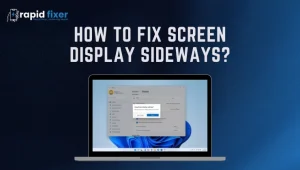
It is the surest and universal formula of repairing a sideways screen in Windows. Right-click on a blank section of your desktop and choose Display settings.
Keep scrolling until you arrive at the Display orientation option. Select Landscape in the drop-down menu. Confirm the change by clicking on Apply. The screen should automatically turn back to place.
The technique is compatible with Windows 10, Windows 11, and the majority of versions before it.
Fix Screen Rotation Using Graphics Control Panel
Numerous systems rely on Intel, NVIDIA or AMD dedicated graphics software. These applications enable you to manipulate screen orientation directly.
Right-Click on the desktop and choose your GPU software to open the graphics control panel. Find a section called Display, Rotation or Orientation. Adjust the rotation to either Normal or 0 degrees and implement the changes.
The technique is applicable where Windows settings fail to respond or where two or more monitors are attached.
Update or Reinstall Display Drivers
When your screen is continually rotating in the wrong direction or the orientation option continues to switch, then it could be a result of bad drivers.
Go to Open Device Manager, expand Display adapters, right-click your graphics card and select Update driver. Auto update Windows to find the latest version. Once you have updated, restart your computer and recheck the screen orientation.
In other instances, a complete fix of persistent rotation problems can be achieved by uninstalling and installing the driver again.
Lock Screen Rotation to Prevent Future Problems
Windows-based convertible laptops and tablets usually include a rotation lock. To turn off the screen rotation, which may occur accidentally, you can turn it off in the Action Center or display settings.
This can particularly help you in case you often find yourself in an unwanted orientation when using your device on a desk.

How to Fix Screen Display Sideways on Android
Enable Auto-Rotate from Quick Settings
In the Android operating system, the most prevalent cause of a stuck or sideways screen is a disabled auto-rotating screen.
Tap the top of the screen down to access the Quick Settings panel. Find Auto-Rotate or Portrait. When it displays Portrait, it can be tapped to turn on auto-rotation. When switched on, rotate your phone and the screen will automatically adjust.
Check Display Rotation Settings
Go to settings, display, and locate screen rotation or auto-rotate. Make sure it is enabled. There is also a separate option of home screen rotation in some devices, and it must be turned on.
Restart and Update Your Device
Simply restoring can adjust the motion sensors and correct temporary glitches in software. In case the problem appeared after applying an app or system update, try to look at the new updates and install them, because it happens that manufacturers regularly issue updates to fix sensor and orientation bugs.
Sensor Calibration and App Conflicts
Still, in case of auto-rotate failure, the accelerator sensor might need to be recalibrated. Certain phones are capable of calibration inbuilt, and others need third-party utilities. There are also some applications, which lock the screen orientation. Attempt to uninstall the recently installed applications and rerotate.
How to Fix Screen Display Sideways on iPhone and iPad
Turn Off Rotation Lock
Screen rotation in iOS devices can be switched off.
Tap the screen down until you reach Control Center and find the rotation lock icon. When it is touched, it should be tapped to turn off the lock. Turn your device and verify whether it switches the screen.
Restart the Device
Minor sensor or software problems that prevent the screen to rotate correctly can be solved with a restart.
Update iOS for Bug Fixes
Go to Settings, open General, and check Software Update. System bugs can cause orientation issues that can be resolved by installing the current iOs version.
Advanced Troubleshooting for Persistent Issues
Check External Monitor and Docking Settings
When you use an external display, the system preferences may be overridden by the own orientation options offered by the display. Go to the on-screen menu on the monitor and revert the rotation to standard.
Use Safe Mode on Windows
Starting Windows in Safe Mode would be useful to identify a third party application as a possible cause of the rotation issue. In the cases where the screen is showing normally in the Safe Mode, the cause might be a recently installed program or driver.
Reset Display and Sensor Settings
On Windows or network and sensor settings on mobile devices, restoring default behavior and resolving recalcitrant orientation issues can be achieved by resetting display settings or re-reading network and sensor settings respectively.
Conclusion
Every person who frequently works with a computer, smartphone or tablet should learn how to fix screen display sideways. The remedy is not very complicated in most cases: change the display orientation, turn on auto-rotate, or upgrade graphics drivers. With the concept of screen rotation and the above-instructed step-by-step procedures, you will be able to place your screen back to its usual state as fast as possible and avoid the problem in the future.
FAQs About How to Fix Screen Display Sideways?
Why did my screen rotate by itself?
This mostly occurs as a result of accidental keyboard shortcuts, auto-rotate is turned on, or there is a display orientation settings change. Sensor calibration problems can also cause it on mobile devices.
Why is auto-rotate not working even when it is turned on?
The most frequent causes are a defective sensor, a bug in the system, or an application that insists on a fixed orientation. This problem is usually addressed by restarting the device or updating the operating system.
Can malware cause a sideways screen?
Although malicious software or corrupted drivers are rare, they may influence display behavior. In such instances, running a complete system scan and re-running display drivers can be used.