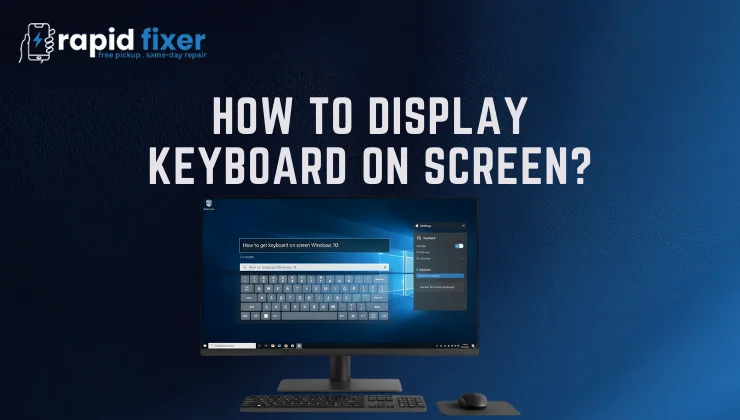
Learning how to display keyboard on screen comes in very handy when your physical keyboard has broken down, keys are broken, or a touchscreen device is in use. The virtual keyboards in the modern operating systems such as Windows, macOS, and ChromeOS can be used to directly enter the typing on the display using a mouse, touchpad, or touch input.
This is a comprehensive manual on how to display an on-screen keyboard, stepwise, in Windows computers, laptops, Mac, and Chromebooks and answers to the most frequently encountered troubles by users.
Table of Contents
What Does Display Keyboard on Screen Mean?
Placing a keyboard on the screen would be to allow a virtual or on-screen keyboard to be displayed on your screen. Rather than pressing physical keys, you are engaging with keys on the screen by clicking or tapping on them.
A lot of users are searching on how to display a keyboard on the screen when their laptop keyboard suddenly stops responding or they cannot type because their hardware is damaged. On-screen keyboard is user-friendly, which is its main aim, but it also proves useful as an emergency typing tool.
How to Display Keyboard on Screen in Windows
Windows offer two keyboards depending on the type of device you have; the On-Screen Keyboard (OSK) and the Touch Keyboard. They both can work on desktops and laptops.
How to Display On-Screen Keyboard Using Windows Settings
This is the most reliable and works on all versions of windows.
To begin with, open the Settings and go to the Accessibility. In there, choose Keyboard and enable the feature that is named On-Screen Keyboard. The keyboard should now be on your screen as soon as you enable it. You are able to relocate the keyboard, enlarge it, and keep typing with your mouse.
This is the perfect way when your physical keyboard is not working at all.
How to Display Keyboard on Screen Using a Shortcut
Windows provides a shortcut in case some keys on your keyboard are still operational.
Click Windows + Ctrl + O simultaneously. This opens or closes the on-screen keyboard immediately. The other method is by pressing Windows + R, typing osk and pressing Enter. The two approaches open the same virtual keyboard.
It is among the quickest methods to show a keyboard on the computer without scrolling through the settings.
How to Display Keyboard on Laptop Screen
The Windows Touch Keyboard can be more appropriate in case you use a touchscreen laptop or convertible or a tablet.
Move the cursor to the taskbar and make sure Show touch keyboard button is turned on. There will be a keyboard icon displayed beside the system tray. Tapping on this icon opens the keyboard on your screen.
It is a touch-enhanced keyboard and has automatic displays when you tap on text fields, which makes it the perfect keyboard to use in the new laptops and 2-in-1s.
Why the On-Screen Keyboard May Not Appear in Windows
In some cases users turn on the keyboard although it is not visible. This most commonly occurs because of disabled accessibility services, old system files, or conflicting third party software.
Rebooting your computer, rechecking your accessibility options, and updating Windows are usually the solution. On touchscreen laptops, the keyboard does not always appear automatically by default, depending on the incorrect typing settings.
How to Display Keyboard on Screen on Mac
There are two options available in Mac computers with respect to the virtual keyboard based on the degree of control you require.
How to Display Keyboard Viewer on Mac
The Keyboard Viewer provides a visual display of your keyboard and also lets you interact simply.
Open System Settings, then Keyboard, then turn on the menu to display the Input menu in the menu bar. When this feature is enabled, you can also show the keyboard viewer by clicking the input icon at the top of your screen and choosing Show Keyboard Viewer.
The technique is convenient when you just have to press keys at times or simply want to view key layouts.
How to Display Accessibility Keyboard on Mac
MacOS has an Accessibility Keyboard, in case you require a full on-screen keyboard.
Open System Settings, then Accessibility and Accessibility Keyboard. The full virtual keyboard is displayed on the screen and can be typed on physically without the need of a full keyboard.
This alternative is the most effective in cases where your Mac is broken or not functioning.
How to Display Keyboard on Screen on Chromebook
Chromebooks have an on-screen keyboard which is helpful particularly on touchscreen models.
Click the bottom-right time, open the Settings, and access the Accessibility. Under Keyboard and text input, enable On-screen keyboard.
The keyboard will automatically be displayed automatically when you tap a text field with the keyboard switched on. This allows you to type without any complications even when you are not connected to your Chromebook via its physical keyboard.
Why You Might Need an On-Screen Keyboard
Numerous reasons contribute to people seeking how to display keyboard on laptop screen practically. The most frequent cause is a broken or unresponsive keyboard, followed by accessibility needs, touchscreen usage, and temporary hardware problems.
On-screen keyboards mean that you can continue to operate your device, enter passwords, send emails, and do work without it being interrupted.
Common Issues When Displaying Keyboard on Screen
There are users who report having issues with the keyboard either recurring or failing to show. This normally occurs as a result of automatic touch key activations or incorrectly set accessibility settings.
These problems are normally solved by changing typing options, switching off auto keyboard pop-ups, or by re-plugging external keyboards back into the computer. In laptops, whether or not an external keyboard is present, the on-screen keyboard may be influenced too.
Tips for Using an On-Screen Keyboard Effectively
You are able to scale and rearrange the keyboard to prevent sealing the text fields. On devices with touchscreens, adjusting settings like Rotate Screen Display can also improve visibility and make the on-screen keyboard easier to use in different orientations. Securing it to the taskbar gives it quicker access particularly to windows devices. In-built keyboards are relatively safe, though extra caution is required when typing sensitive data in case of third-party virtual keyboard.
Conclusion
Learning how to display keyboard on screen will give you the ultimate control of your device even when the physical hardware fails. Using Windows, a laptop, macOS or a Chromebook, in-built virtual keyboards offer a dependable and convenient typing method.
FAQs About How to Display Keyboard on Screen?
How do I display keyboard on screen without using a keyboard?
The on-screen keyboard can be turned on using a mouse or touchpad in its accessibility settings.
Can I use the on-screen keyboard on the login screen?
Yes, the majority of operating systems can enable the accessibility on the login screen which will enable you to open the virtual keyboard.
Why does the on-screen keyboard keep opening automatically?
This occurs with automatic touch keyboard settings on. This can be turned off either through typing or through accessibility options.
Is the on-screen keyboard safe to use?
Normal keyboards that are built in are safe when you use them, but in sensitive data you cannot use untrusted third-party keyboards.