The brightness of your screen is a significant factor in determining how comfortable and productive you are when working. An overly bright display may lead to eye strain, headaches, and increased battery consumption. Conversely a low-resolution screen may not render text or other details easily, particularly in a room that is well-illuminated. This is the reason why it is important to know how to adjust display brightness correctly, be it in Windows 10, in macOS, or in a third-party monitor such as the Apple Studio Display.
In this guide, you’ll pick how to adjust brightness settings step by step, but you will also learn how to select the appropriate brightness level in your environment, how to resolve light issues, and how the features such as Night Light, Night Shift, and True Tone affect your screen.
Table of Contents
How to Adjust Display Brightness in Windows
Using Quick Settings and System Display Controls
Windows ensures display brightness adjustment is easy with its inbuilt tools. It can be done the quickest via the Quick Settings panel of the taskbar. A slider will appear when you press the battery, Wi-Fi, or volume icon on the right hand side of the taskbar and allows you to make brightness brighter or darker in real time. The approach is dependable and best when you desire to make hasty modifications as you multitask. However, in case you want a more lasting or accurate environment, visit Settings → System → Display.
In this case, there is a brightness slider located in the section of Brightness and Color that allows you to adjust display brightness manually in windows 10 and windows 11. It is particularly handy when the Quick Settings panel is not visible, or when you require more options such as contrast and HDR settings, as well as brightness adjustments.
Adaptive Brightness and Automatic Adjustments
Certain windows devices have ambient light sensors. Windows with this hardware has an automatic brightness option that modulates the screen depending on the environment around you. This can be turned on or off using the same Display settings window. Though the feature is convenient, most users want to have predictable brightness, especially designers, video editors, and people who require precision over auto-adjusted lighting.
Windows also has Content Adaptive Brightness which changes the brightness of the screen based on what you are looking at. This can also assist in battery conservation but it might lead to variations in brightness of the screen which is distracting to some users. In case your screen seems to be fading away or getting brighter automatically, disabled this option will give you a more reliable experience of viewing.
What to Do When Brightness Controls Don’t Work
There are instances where Windows users miss the slider of brightness completely. This nearly always occurs when the PC is linked to an external monitor that does not provide the capability to control brightness in Windows. Physical buttons or onscreen display (OSD) menu controlled monitors need to be adjusted manually on the monitor itself.
In case you believe that the slider is not showing up yet, it is common to restart your graphics drivers by updating them using the Device Manager. The Windows brightness bugs can sometimes be fixed by a restart or installation of pending updates.
How to Adjust Display Brightness on macOS
Adjusting Brightness Through System Settings
Mac users can easily adjust brightness through System Settings → Displays. You will notice that there is a dedicated Brightness slider when you open the Displays section. By simply dragging it right or left, you can adjust the brightness of your screen to achieve an optimum viewing experience.
Macs which have ambient lighting sensors can also be programmed to automatically turn the brightness down or up as the room light changes. It can assist in cases of frequent passage between bright and dark scenes, but most creators simply keep it off to maintain the same degree of color and brightness across their work.
Using Keyboard Keys and the Control Center
Brightness keys are provided on most Mac keyboards F1: down F2: up Most Mac keyboards have brightness keys, typically F1 to make the screen darker and F2 to make the screen brighter. These are the quickest manual control that does not require them to open any settings. Brightness can also be changed through the Control Center, and you can easily change the brightness when watching videos, editing documents, or on the Internet.
External Monitors and macOS Brightness Limitations
Brightness control is smoothly operated with internal Mac monitors, but when applying external monitors things get different. A lot of external monitors (as well as some of the old models) do not have software brightness controls in macOS. When this occurs, then you will have to utilize the physical OSD buttons on the monitor itself.
In case of Apple Studio display or monitors that use DDC/CI, third party software like Monitor Control can be used to adjust brightness and volume on the macOS. This will be particularly useful when you have a dual-monitor setup or you wish your external display to act as a native Mac display.
How to Adjust Brightness on Apple Studio Display
Using Built-In Brightness Controls
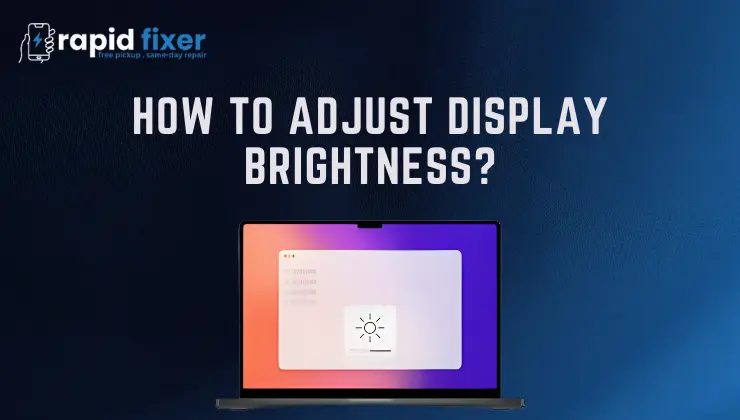
Apple Studio Display is a high-end display, and its brightness is controlled differently than standard monitors. Studio Display models have a built-in brightness control in their internal system and the majority of brightness controls are controlled directly in macOS. After being connected to a Mac, the Studio Display is supposed to show up in the System Settings half in Displays, and you can regulate the brightness through the familiar slider.
But physical buttons are also present in Studio Display models (physical buttons or an integrated brightness knob depending on model). These controls allow you to control the brightness even when you have a device that does not support the software that can control the brightness.
Brightness Control When Using Studio Display with macOS
When linking the Studio Display to a Mac, you frequently obtain more sophisticated brightness and colour settings, and macOS might display Display Presets or Reference Modes, contingent upon your model, permitting you to choose brightness-optimized profiles that are either photography, video work, SDR material, or typical productivity. These presets are able to enhance your workflow a lot particularly when accuracy is a priority.
In case the brightness slider is not visible, you might need to reconnect the display or reboot your Mac. MacOS is sometimes unable to recognize external displays, and reconnecting them corrects the problem.
Using Studio Display with Windows
Apple Studio Display users are restricted when they connect to a Windows PC. Windows is not particularly compatible with Apple monitors, and the ability to control brightness via the system is hardly ever operable. Here you will have to depend on the physical brightness adjustment settings that are built into the Studio Display. There are a few unofficial utilities, although their performance is not consistent and are not usually recommended unless you are conversant with technical workarounds.
Choosing the Right Brightness for Comfort and Accuracy
Brightness controls not just your comfort in viewing, but also can impact your productivity and even your health. A normal indoor setting has a brightness of between 40 to 60 percent. Less brightness at night means less strain and you are able to preserve healthy circadian rhythms. A brighter level may be required when operating in well-lit rooms or when close to the windows.
When it comes to creative tasks like photo editing, video grading, or design, turn off auto-brightness and set the reference mode that fits your working process. Coherence is important in the colour-accurate work.
Troubleshooting Brightness Issues Across All Devices
In the event of brightness issues, like flickering brightness, missing sliders, or wrong brightness, the first thing would be to test your cables and ports. Malfunctioning or loose connections may cause brightness controls to vanish. Rebooting is also a solution to most temporary problems.
Some users also need to change display refresh rate while troubleshooting display problems, as incorrect refresh settings can affect brightness stability and screen performance. To Windows users, the answer is usually the graphics driver update.
In the case of Mac users, a reconnection of display or a reset of the display settings in System Settings can assist. Software settings can be overridden by external monitors that have their own OSD menus, and often the simplest way to be sure of a change is to adjust brightness using the monitor itself.
Conclusion
Learning how to adjust display brightness to the right level can transform your experience at the screen, make it more comfortable and promote healthy long-term eye protection. Whether it be on Windows 10, MacOS, or an Apple Studio Display, the correct brightness can make all the difference. You can optimize your display to be productive, accurate, or even relaxing–at any time of the day with the steps and tips presented in this guide.
FAQs About How to Adjust Display Brightness?
How do I increase brightness on Windows 10?
In Windows 10, you can use the Quick Settings to make the screen brighter by clicking either the battery or Wi-Fi icon on the taskbar and sliding the brightness slider. Alternatively, to control the brightness manually, you can visit Settings / System / Display.
How do I adjust brightness on Apple Studio Display?
The brightness of the Studio Display can be adjusted under System Settings Displays when linked to a Mac. When the monitor is linked to Windows or some other device, then apply the in-built brightness buttons or controls on the track.
Why is my brightness slider missing?
This normally occurs when you are using an external monitor which does not allow you to control brightness via the operating system. When that happens, you have to play it with the physical controls.
Is automatic brightness good for my eyes?
Automatic brightness would be useful in ever-changing conditions, but most users would use manual brightness to maintain consistency, particularly during the night or a long work shift.
How can I reduce eye strain at night?
One can effectively reduce the eye strain after the sun has gone down by reducing brightness, enabling Night Light (Windows) or Night Shift (macOS), or enabling the warmer color modes.