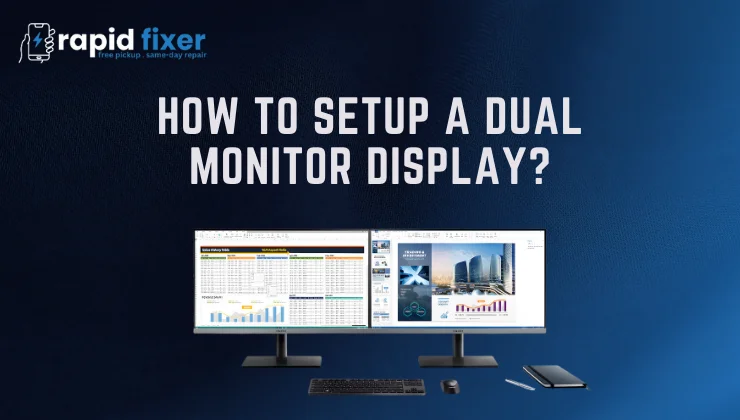
A dual monitor display is no longer a luxury item of tech fans, but an achievable configuration that can be used by anyone who feels the need to work more quickly, manage to work with multiple tasks concurrently, and experience a more comfortable digital setting. Two monitors can change your computer usage experience, whether you are studying online, a professional working with multiple applications at once, a gamer who needs more space on the screen, or a designer who requires more room to fit the tools and timelines.
This guide will teach you how to setup a dual monitor display step by step. We shall take a stroll through hardware requirements, cable and port identification, windows configuration, monitor placement methods, troubleshooting and other tips required to make the working experience a smooth sail. Other useful tips on laptop users, macOS users, Linux users, and individuals who have laptops as well as monitors that are set up to use either in creativity or gaming are discussed in this article as well.
Table of Contents
Understanding What You Need
Hardware and compatibility considerations Before connecting anything, you need to know what is involved in a dual screen setup, hardware and compatibility requirements. This saves you the trouble of having to do it again and getting it wrong.
Checking Your Device’s Video Outputs
The first thing you should do is to open your desktop computer or laptop and check what kind of video output ports it has. The majority of modern systems have ports like HDMI, DisplayPort, USB-C or Thunderbolt. Older devices can still use VGA or DVI. The kind of cable you will use depends on the kind of port you have. In case your machine has two or more outputs, you can directly connect two monitors. In case you have a single output, particularly on a laptop, then it is imperative to use either a docking station or a multi-port USB-C hub.
Choosing the Right Monitors
The monitors can be two of the same size or a combination of sizes and brands. A matching resolution may be a more comfortable experience, although not obligatory. One monitor is 4K and the other one is 1080p then windows can still support it, but you should expect differences in scaling and clarity. The trick is that both monitors should be matched in their inputs. To illustrate, when your device supports HDMI and your monitor supports DisplayPort only, you might need an adapter.
Cables, Adapters, and Docking Stations
The choice of the appropriate cable is paramount in quality and stability. The most popular modern standards are HDMI and DisplayPort and have high resolutions and refresh rates. USB-C is doing well since one single cable can support video, power, and data. You might experience poor image quality or blurred text, especially when using an older VGA connection.
Docking stations or USB-C hubs are also popular among Laptop users as they enable you to use several monitors at once using a single cable. It also makes your working environment clean and enables you to easily shift between home and office systems.
How to Physically Connect Your Dual Monitors
Physically, it is easy to hook two monitors to each other as soon as you have your cables and ports prepared.
Identifying the Correct Ports
Begin by observing the back of your desktop tower or the side of your laptop. Determine the presence of HDMI, DisplayPort, USB-C, or more outdated solutions such as VGA. Then check the ports on each monitor. It is absolutely natural to have different ports on your computer and monitors. To illustrate, you may have a laptop with USB-C and monitors that may only take HDMI. A USB-C to HDMI cable or a docking station will fix the problem in that scenario.
Connecting the Cables Properly
After finding compatible connections, switch off your computer and monitors. Use the right cable of your device to each monitor. Once everything is connected, turn on your monitors and configure them to the appropriate input. Each monitor typically has a button to choose the input, e.g. HDMI1, HDMI2, DP, USB-C.
Power on your laptop or PC when the monitor is connected to the proper input. Both screens should be automatically identified by Windows. Otherwise, you can find them later by hand via Display Settings.
Using Docking Stations for Laptops
In case you have a laptop and limited ports, do not connect your monitors to it; instead, connect it to a docking station. Docking stations have more than one display, and they usually have extra USB ports, Ethernet, and charging capabilities. Once the monitors are attached to the dock, attach the dock to the laptop with USB-C or Thunderbolt. This is considered to be more reliable and cleaner by many users compared to using several cables by connecting them directly to the laptop.
Configuring Dual Monitors in Windows
When both monitors are physically connected and turned on, they can be configured with windows. This section defines the behavior of the monitors, the way in which you jump between monitors, and the one that is your primary monitor.
Opening Display Settings
To set up your dual monitor screen, you will free the display settings in the display menu in settings, which is located under settings/system/ display. You will observe two rectangles of your monitors. Click Identify in case you are not certain about which one is which. The rest will be on a big screen to assist you in confirming.
Arranging the Monitors Correctly
Drag the rectangles in the Display Settings to the setting of your monitors on the desk. When the position of one of the monitors is somewhat higher or at the left, change the layout. It is possible to align your mouse correctly so that it can move freely across screens without being caught up at the corners.
Selecting the Display Mode
Windows has three primary modes:
Extend Mode
This is the most likely option. It functions as a single large workspace between two monitors, which is why you can also move apps and windows across them. It is perfect in multitasking, editing, programming, and creative work.
Duplicate Mode
This displays the same image on both the monitors. It also comes in handy in presentations when you would like an audience to see what is on your screen.
Second Screen Only
In this mode, your laptop or primary screen will be turned off, and you can use it only through the external monitor. It comes in handy when you need a clean single-screen workspace.
To toggle between these modes, press Windows + P.
Adjusting Resolution, Scale, and Refresh Rate
Choose each monitor separately to set the resolution, scale and refresh rate. In case of any blurred monitors, or the font being too small or too big, then changing these settings should fix the problem. Synchronizing the resolution on both displays is optional, but more compatible.
Setting Your Primary Monitor
The default view in your primary monitor shows the taskbar and the start menu as well as the majority of applications. In order to set it, choose the monitor in Display Settings and make it my main display. It is common to find many individuals using the monitor they are directly facing, or the one with the best quality as the main display.
Mac and Linux Dual Monitor Setup Notes
Dual monitor setup is also straightforward in macOS and Linux, but the menus can appear slightly different.
Dual Monitor Setup on macOS
Click on the Open System Settings and then go to Displays and then Arrangement. Move the displays to suit your physical arrangement. Macs with either USB-C or Thunderbolt tend to work with docking stations. Remember that not all MacBook models have more than one external display without a DisplayLink-based dock.
Dual Monitor Setup on Linux
Linux most distributions can show Display Settings, which is a simple program that allows you to set the resolution, orientation and placement. The xrandr command can also be used to give control to more advanced users.
Ergonomic Placement and Layout Tips
The only way that dual monitors are really helpful is when they are set up in a comfortable position. The misposition might cause neck strain, eye fatigue or awkward posture.
How to Position Your Monitors Correctly
Put your main monitor directly in front of you such that your body is not twisting at work. Place the second monitor at an angle that will ensure that you see it easily without straining your neck over it to view it. The upper part of each monitor must be at or a bit below eye level and the screens must be placed approximately an arm length away.
Choosing the Best Layout for Your Work
Monitor layouts are advantageous in different tasks. Programmers and writers tend to prefer a vertical posture of one monitor to view long documents or code. Designers would rather have color-accurate monitors on the center and secondary on the tools. Players have a high-refresh-rate monitor to play and the second to use chat or streaming software.
Troubleshooting Common Dual Monitor Problems
Although dual monitor systems are typically simple, minor problems may arise. The following are some of the most prevalent issues and their solutions.
Monitor Not Detected
In case Windows fails to recognize your second monitor, begin by verifying the cable connection at each end. Make sure the monitor is switched to the right input and attempt clicking the Detect in Display Settings. In the majority of cases, this issue is also resolved by restarting your PC or updating your graphics drivers. In the case of a faulty cable or adapter, it fixes the detection problems fast.
Blurry Screen or Wrong Resolution
The blurred screen is usually an indication that the resolution or scaling is not configured. Open Display settings and change the resolution to what the monitor recommends. In the event that you are operating on an old cable such as VGA, the upgrade to HDMI or DisplayPort will ensure significant improvement in clarity.
No Sound Through HDMI
When your monitor has inbuilt speakers, and nothing is sounding, open Sound Settings and choose the HDMI audio output under its own. Windows will default your lap top speakers even with an external display.
Only One Monitor Works After Sleep or Docking
It happens that when you reconnect a laptop to a dock, you see only one monitor. The problem can be resolved by updating dock firmware, reconnecting cables, or restarting the laptop. To avoid display shifting, it is also advised to set windows to remember the position of the windows.
Advanced Tips for a Better Dual Monitor Experience
When everything is working, you can make it even better. The Microsoft PowerToys, especially FancyZones application, which allows you to make your own window arrangements are enjoyed by many users. Calibration of your monitors will make sure that the colors in both monitors are consistent and this will be of great benefit to the designers and editors. The gamers can set their main monitor to the maximum possible refresh rate to ensure smoother images.
Conclusion
The knowledge of how to setup a dual monitor display is able to transform your work, study, and playing experience entirely. After connecting your cables, configuring Windows, and positioning the monitors in a comfortable manner, the dual screen setup is an extremely efficient workspace. You can use the additional space, flexibility, and control on two displays when using multiple apps, creating videos, creating graphics, playing games, or just browsing.
FAQs About How to Setup a Dual Monitor Display?
Can I use two monitors if my laptop has only one port?
Yes. A docking station or USB-C hub, which supports several displays can be used. Others also permit extra USB ports and charging.
Do the two monitors need to be the same size?
They do not need to match. You are able to combine sizes, resolutions, and brands. The visual experience is only slightly different when they are different.
Why does my second monitor show “No Signal”?
The monitor can be tuned to the incorrect input source. Change input to HDMI, DisplayPort, or whichever input you attached. Also check the cable and port.
How do I know which monitor is the main display?
Display Settings displays the star next to the main screen, or the primary display. It is easy to change it by clicking on Make this my main display.