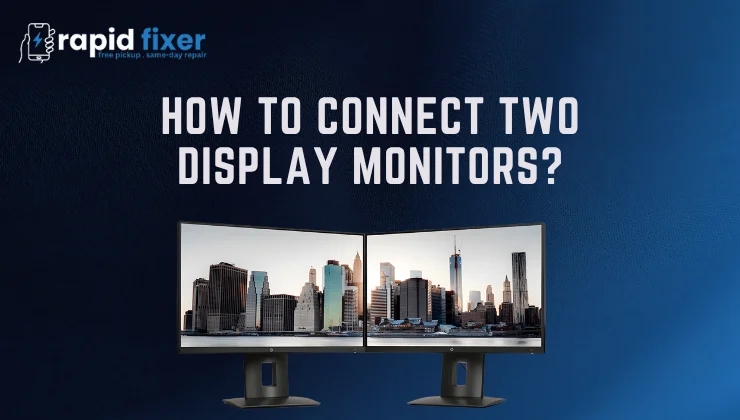
Having two monitors can increase productivity, enhance workplace efficiency, and make working environment more comfortable in a digital workspace. Multi-monitor setup is easy and flexible regardless of whether you use a laptop, gaming setup, or desktop PC because of modern devices. In the guide, you will know how to connect two display monitors using HDMI, DisplayPort, USB-C, Thunderbolt, and docking stations. We will also discuss the steps of windows setup, advanced configuration features and troubleshooting solutions so that you can experience the privilege of using two monitors also.
Table of Contents
Preparing Your Setup Before Connecting Two Monitors
It is good to ensure that your device has two displays and the right inputs and outputs before you start physically connecting anything.
Understanding Your Ports and Cables
All effective dual-monitor configurations begin with matching ports. Modern devices are mostly equipped with HDMI, DisplayPort (DP), USB-C, Thunderbolt, VGA (older and obsolete), or DVI. Check your computer and monitors to identify the ports available in them. In case the ports are not compatible, you can still use adapters like HDMI-to-DP, USB-C-to-HDMI or USB-C-to-DisplayPort to connect two displays. On laptops that have fewer ports a docking station is able to give you a number of display outputs simultaneously, so you can use multiple monitors without being limited by hardwiring.
Verifying Software and Driver Readiness
Dual monitor configurations are based on revised system software to identify and configure displays properly. Ensure that you have updated your windows system. It is also important to update your graphics drivers, be it Intel, AMD, or NVIDIA as older drivers can fail to recognize extra displays, or can restrict refresh rates and resolutions. This is a necessary step to make sure that after your monitors are connected, your computer will be able to read and display the content on your monitors without any problems.
How to Physically Connect Two Display Monitors
The technique you apply would be based on whether the device used is a desktop PC or a laptop. They both are simple when you know the connection types at your disposal.
Connecting Two Monitors to a Desktop PC
Dual-monitors are usually easier to set up with desktop computers as they have more than one video output port. The first step is to shut down your PC and plug each monitor into an individual port like HDMI, DisplayPort, or USB-C. Once you have booted up the PC again, it is time to turn on the individual monitor and configure it to the appropriate input via the menu on the monitor. This direct connection provides the most reliable setup, particularly when your GPU is built to drive more than one display.
Connecting Two Monitors to a Laptop Using a Docking Station
Laptops, and ultraportables in particular, usually have fewer ports. The docking stations or Multiport USB-C hubs enter this picture. An instant increase in the connectivity of a laptop can be found in a docking station which provides HDMI, DisplayPort, Ethernet, and USB outputs. Plug your laptop into the dock with a USB-C or Thunderbolt cable and each monitor into the dock with the relevant ports. It works best with home offices and hybrid workers or individuals who travel between workstations regularly.
Using DisplayPort Daisy-Chain (MST)
In case your monitors have DisplayPort Multi-Stream Transport (MST), you can have two monitors with just one DisplayPort output on your PC. Plug the first monitor directly to the PC using the DisplayPort and then plug the first monitor to the second one using a second DisplayPort cable. Upon enabling MST in monitor settings, the two screens will operate separately. This is a high-tech approach that removes cables and is usually seen in workplaces.
Configuring Your Two Monitors in Windows
After you have physically linked the display monitors, you can now configure them in Windows. Windows 10 and 11 have user-friendly options to organize and customize various screens.
Detecting and Arranging Displays in Windows
In order to start configuration, open Settings System Display. Windows will automatically identify the monitors that are connected but in the event that one is absent, click on Detect. The screens will have numbers on them, making it easier to know which one is monitor 1 and which is monitor 2. Drag the displays on the arrangement map so that they appear on your desk the way they actually are. This will make your mouse and windows move naturally to new screens.
Choosing the Right Display Mode
There are various modes in windows depending on your needs. Extend mode merges into a single workspace that spans both monitors, making this the best choice to use when working in the office, conducting research, editing, and multitasking. The Duplicate mode displays both screens with the same content and is handy when you want to present something. Second Screen Only: This is used to turn off your primary screen, whereas PC Screen Only: This is used to turn off external monitors. These can be easily switched on and off with the shortcut key Windows + P.
Adjusting Resolution, Refresh Rate, and Scaling
The monitors can have varying resolutions or refresh rates. Under the Display settings, choose all the monitors separately and adjust the resolution. The resolutions of 1440p or 4K are sharper, whereas the motion is smoother with higher resolutions (120Hz, 144Hz). In case the text is either too small or too large, then change the scaling options so that everything could be readable and consistent.
Troubleshooting Common Issues with Dual Monitor Setup
Even the most successful setups may have a few problems. Luckily, the majority of problems with dual-monitor can be fixed.
When a Monitor Isn’t Detected
In case Windows is failing to detect one of the screens, begin by verifying cable connection. Re-check faulty hardware, switch cables or ports. Reboot your PC or laptop to initiate a new detection cycle. Laptop users can attempt to disconnect and reconnect their docking stations. When the display is still not detected, update your graphics drivers and re-detect in the display settings.
Fixing Flickering, Black Screens, or No Signal
The problem of visual usually lies in improper refresh rate configurations or broken cables. Install the latest drivers on your graphics card, and temporarily reduce the refresh rate on the monitor to stabilize the signal. Attempt another HDMI or DisplayPort cable and, where feasible, attempt a different port altogether. Your graphics card might require different settings to allocate bandwidth properly, depending on the older monitors or devices with mixed resolutions.
When Your GPU Cannot Support Two Monitors
Not all older laptops or less expensive PCs can drive more than one display using in-built ports only. In the event this occurs, try to use a USB-C docking station or upgrade to a dedicated graphics card in a desktop computer. Making your monitor smaller or lowering the refresh rate might also work in case bandwidth is the problem.
Mouse Alignment Problems Between Screens
When your mouse jumps the wrong way or fails to transition across the screens smoothly, change the layout grid in Windows Display settings. Adjust monitor edges to match your actual desk setup. Alignment gaps can also be eliminated by consistent scaling when scaling across the two monitors.
Choosing the Best Cable or Port for Dual Monitors
It may help to know what type of cable to use to enhance performance and minimise problems. DisplayPort is best suited to high refresh rates and daisy-chain configurations. HDMI is the most widespread, and it is compatible with almost every new monitor. USB-C is ideal with laptops, as it provides the capability to transmit video, electricity, and data in one cable. The older standards can still be used but not as well as the newer ones: VGA or DVI does not have the visual clarity or performance of newer standards.
Recommended Dual Monitor Setups for Different Users
Productivity and Office Use
A classic productivity system comprises a laptop and one or two 1080p or 1440p monitors attached via a USB-C dock. Extend mode enables you to use spreadsheets, documents, and research windows at the same time.
Creative Professionals
Graphic designers/editors tend to use dual monitor IPS displays with precise color replication. Calibration of both monitors guarantees the same look when working on creative jobs.
Gamers
Gamers typically use a single high-refresh-rate display to play, and a second display to stream, chat, or check system performance.
Students and Writers
A vertical + horizontal monitor combination is advantageous to students because it is easier to read long documents with a monitor and keep notes open in another monitor.
Conclusion
Setting up a dual-monitor environment is not hard when you are familiar with your device ports, cables and windows display tools. With this knowledge of how to connect two display monitors you are now able to create a more productive and multitasking friendly workspace that suits your needs. Two monitors can turn your business or school life and gaming into an extremely efficient visual experience, whether you are working, studying or gaming.
FAQs About How to Connect Two Display Monitors?
How do I connect two monitors to my laptop?
Built-in HDMI/DisplayPort outputs are available, or a USB-C docking station can be used in case your laptop does not have sufficient ports.
Can I use monitors from different brands or sizes?
Yes. Windows manages the displays separately and can support any resolution kind of display and orientation.
What if my laptop only has one HDMI port?
Connect with USB-C to HDMI or DP, or upgrade to a docking station with multiple video outputs.
Do two monitors slow down the computer?
Not typically. GPU-intensive applications such as games can only have slight variations in performance.
Can I use different wallpapers on each screen?
Yes. Navigate to Personalize Background and designate various wallpapers to each display.