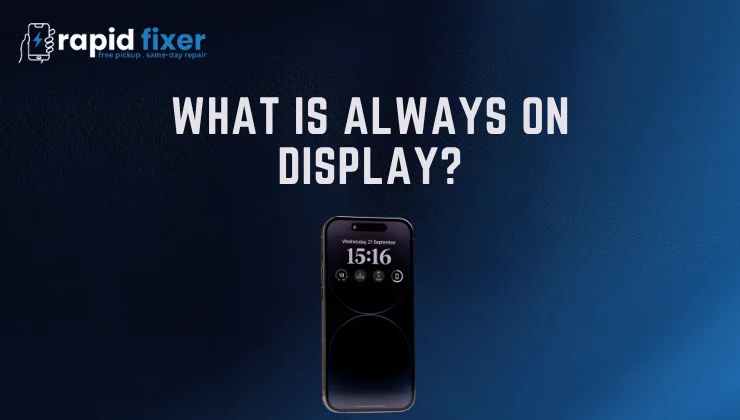
When you ever wondered what is always on display, the answer is simple and extremely helpful. Also known as AOD, always-on display (also referred to as always-on display) is a phone feature that allows you to have some important information on your screen even when your phone is locked. You do not have to turn on your phone and check the time or the notification; AOD presents a bare amount of information on a low-brightness screen.
This saves time, and it also gives a convenient modern way of communicating with your device at a glance. The option has gained popularity on Samsung Galaxy gadgets, later iPhones, and most Android devices. It is largely being adopted because of improvements in AMOLED and OLED technology allowing the information to be displayed continuously with very minimal battery consumption.
Table of Contents
How Always-On Display Works
The Technology Behind AOD
Always-On Display is based on OLED or AMOLED displays, which are types of displays where each pixel is individually lit. OLED technology does not use the whole backlight in the way LCD screens do, which means that only the pixels required to display text or an icon are lit up. When the background of the screen is black, the corresponding pixels are literally switched off, greatly lowering power consumption.
This is the energy-saving aspect that enables AOD to display small fragments of information during the day without straining your battery a lot. The screen is not bright, but it can be viewed at a glance in nearly every light situation.
The Evolution of Always-On Display
AOD traces its origins back to the early Nokia and Motorola phones that had an option known as Glance Display or Active Display. The feature continued to be polished overtime, and it later found its way into premium smartphones. The brands such as Samsung and Apple today have brought AOD to a highly customizable and appealing eye experience, incorporating widgets, animations, and responsive brightness to make it even more practical.
Always-On Display on Samsung Phones
What Always On Display Means for Samsung Users
Samsung has been one of the first and best equipped to adopt this technology, so many people especially look up what is always on display Samsung. In Samsung Galaxy, the Always-On Display does not simply display the time. It is a customizable mini dashboard that runs when you lock your screen.
Samsung gives the user the option of displaying multiple items like the clock, calendar information, reminders, battery percentage, notifications, and even small pictures or animated GIFs. This provides an in-depth but minimalistic lock screen experience that brings personality and functionality.
How to Turn Always-On Display On or Off on Samsung
It is easy to enable or disable Always-On Display on a Samsung phone. It can be accessed in the Lock Screen settings and the Always-On Display option is found there. After turning inside the menu, you will be able to decide how and when AOD will appear. As an example, Samsung allows one to configure the display to be constantly on, only appeared on a tap, or be on a personalized time-based schedule daily.
Customizing Samsung’s AOD Experience
The strength of Samsung is its customization options. There are clock styles, brightness controls, notification settings, choice of an AOD theme, or even colorful moving styles to be used indoors. The wide variety of settings offered by the brand means each user can customize their screen to their lifestyle.
Battery Tips for Samsung Users
Even though AOD is not a heavy battery consumer, Samsung provides optimization options. Here, setting AOD to work at certain hours or selecting a limited number of clock styles will go a long way in enhancing the battery life without still depriving you of the comfort of accessing information quickly.
Always-On Display on iPhone
How Apple Approaches Always-On Display
What is always on display iPhone is a query that is sought by many users since Apple only added this feature later than the Android brands. The application of AOD by Apple contrasts with the minimalistic approach by Samsung. Apple does not display a bright digital clock but a subdued version of your Lock Screen. That is to say your wallpaper, widgets, notifications, and Live Activities are still visible on the locked screen albeit in a much more muted and calmer manner.
iPhone Models That Support Always-On Display
Always-On Display is now available on iPhone 14 Pro, iPhone 14 Pro Max, iPhone 15 Pro, and iPhone 15 Pro Max. These designs operate on LTPO OLED screens that can reduce their refresh rate to 1Hz, which is energy-saving even when the display is partially active.
How to Turn AOD On or Off on iPhone
To control this option, all you have to do is enter the Display settings in the iPhone menu. Apple also offers some other customization options, like removing the wallpaper or disabling notifications on the Always-On display. It is best suited to users who like a more clean and minimal look or desire to have better battery life.
iPhone StandBy Mode
As part of iOS, Apple has also added Standby Mode, a horizontal docking display that shows up when the phone is turned on a charger in landscape mode. This mode is similar to a smart desk clock, displaying widgets, photos or clocks and consuming little energy further enhancing the overall AOD experience.
Always-On Display on Other Android Phones
Different Manufacturers, Different Names
Other Android brands have their own versions of AOD outside of Samsung. It is called Ambient Display by some, Peek Display by others, Lock Screen Display. The functionality may differ, but the principle remains the same: it is necessary to display the essential information on a darkened screen without turning on the phone.
How to Enable AOD on Most Android Devices
The Always-On option is located within the Display/ Lock Screen settings of most Android-based phones. When enabled the user can customize what is on the screen, e.g. the clock style or notification previews. The decisions are determined by the manufacturer, yet the general method of setup is simple and reachable.
What If Your Device Doesn’t Support AOD?
LCD-based phones do not always have inherent Always-On Display. Nevertheless, third-party applications at the Google Play Store can also help users to do the same. These applications mimic the AOD appearance and have extra customization options, albeit at the cost of a little more battery.
Understanding Always-On Display Apps
What Is Always On Display App?
A frequent question is what is always on display app, particularly when one has a phone that does not have AOD installed. An AOD application is a third-party app, which is intended to replicate the Always-On Display feature. The range of custom options available in these apps includes animated clocks, edge lighting, music controls and custom notification layout.
How AOD Apps Enhance the Experience
Other applications have more functionality than native AOD systems, with people being able to create colorful clock faces, add photo backgrounds, or use special animations. Nevertheless, as these apps operate all the time, they might demand extra permissions and have a minor impact on the battery life.
Safety and Privacy Considerations
Although most AOD apps are dependable, it is important to select apps that have high ratings and positive reviews. Applications that are not properly developed can ask unneeded permission(s) or affect performance. By using popular applications, one can be sure of their safety and stability.
Battery Impact of Always-On Display
Does AOD Consume More Battery?
Always-On Display is battery consuming, but usually in a very limited sense. AOD typically draws between half a percent and about one percent battery an hour on OLED displays. Apple version can consume a bit more when the wallpaper is visible, but Apple optimizations in power saving make it efficient.
How to Reduce Battery Impact
Users who prefer more battery life can ensure AOD usage is limited by scheduling or decreasing the brightness. Simpler layout selection, disabling wallpapers, or switching on tap-to-show features can be used to extend battery life too without sacrificing the convenience of AOD.
Who Should Use Always-On Display?
AOD Makes Life Easier
Always-On Display suits people who use phones intensively during the day. It eliminates the necessity to press the screen multiple times and simplifies the process of staying informed about the notifications, calendar notices, and battery indicators. AOD will also be of great benefit to individuals who use their gadgets as bedside clocks.
When You Might Want to Turn It Off
Individuals who are more concerned with the battery life or desire a more clean and distraction-free lock screen can turn off AOD. When privacy is an issue, it is better to switch off the AOD to make sure that no confidential messages are left on the screen when the phone is locked.
Turning AOD On and Off – Quick Guide
Samsung Users
This can be done in the Lock Screen settings, where you can choose to turn off, turn on, or set a time when Always-On Display is active. Samsung also offers detailed appearance customization within the same menu.
iPhone Users
On iPhone, AOD can be found in Display and Brightness. In this case, it is possible to enable or disable the feature and set the presence of wallpaper and notifications on the screen that is dimmed.
Other Android Users
Android devices have similar settings, usually found in either Display or Lock Screen. In case the feature is not offered, third-party applications provide another route to attain the AOD look.
Conclusion
One of the most convenient features in modern smartphones is Always-On Display, which allows the user to see the most important information immediately with minimum energy use. With a better grasp of what is always on display, how it performs on Samsung, iphone, and Android, and how it can be customized to fit your style, you can decide whether it should remain on or be customized to improve battery performance. AOD can be a nice and useful addition to your daily smartphone with a proper setup.
FAQs About What Is Always On Display?
What is always on display?
Always-On Display is a smartphone feature that displays information such as time, notifications, and battery level on a dimmed screen even when the device is locked.
What is always on display Samsung?
In Samsung phones, the Always-On Display may display customized features like clocks, notifications, widgets, and animations on the screen even when the phone is locked.
What is always on display iPhone?
Always-On Display On iPhones, a disabled display of your Lock Screen, with widgets, wallpaper, and notifications, is available as part of the supported Pro models.
What is always on display app?
An Always-On Display app is a third-party Android app, which mimics AOD experience on the devices that do not support AOD and provides a range of customization options.
Does Always-On Display drain battery on iPhone?
Yes, Always-On Display does consume battery on iPhone, but not significantly: 0.6% per hour without wallpaper, 0.8% per hour with wallpaper, or about 6–7% more drain over 24 hours. Apple minimizes the impact using a 1Hz refresh rate and OLED display (black pixels use no power), and the feature automatically disables in Low Power Mode (below 20% battery). To reduce drain, turn off the wallpaper in AOD settings or lower brightness. Available on iPhone 14 Pro/Pro Max and iPhone 15/16 Pro models.