The display drivers of your computer play a vital role in the appearance and functionality of your screen. You may be a gamer who needs a smooth graphics or a designer who needs correct colors or an ordinary user who has flickering or resolution problems, updating your display drivers is necessary. Older drivers may lead to the appearance of minor visual glitches to significant system crashes.
In this article, we shall instruct you to know why display drivers matter, how to check if your drivers need updating, and step-by-step methods to update display drivers safely on Windows systems as well as on best practices and troubleshooting. At the conclusion, you will possess the information to make your graphics card work optimally.
Table of Contents
What Are Display Drivers and Why They Are Important
Graphics drivers or display drivers are programs that enable your operating system to interact with your graphics hardware or Graphics Processing Unit (GPU) in the computer. Your system could appear with visual distortions, restricted resolution, or could no longer output any video without updated drivers.
The current GPUs such as Intel, NVIDIA, and AMD publish driver updates regularly to enhance performance, resolve bugs and ensure compatibility with emerging applications. The latest drivers also make sure that your computer provides smooth graphics, stable performance, and works with the latest software.
Why You Should Update Your Display Drivers
Not just having the latest version of the display drivers is enough to keep up with them. New drivers have real effects on performance, stability, and security.
Performance Improvements
The direct benefit of updating your display driver is that it may improve system performance in gaming and video playback and other graphics-intensive activities. After installing the latest driver updates, gamers tend to experience smoother frame rates and lower lag.
Bug Fixes and Stability
When your screen is flickering, the colors are showing up wrong, or your computer is crashing when running graphics intensive processes, then a bad display driver might be the cause. Such bugs are often fixed in driver updates, making your system more dependable.
Security Enhancements
Attackers may exploit vulnerabilities of older drivers. Keep your system safe by updating drivers to make sure that these areas of vulnerabilities are fixed.
Software and Hardware Compatibility
Older drivers may fail to work with new hardware/software when installed. latest display drivers ensure that your system can keep pace with the newest applications and peripheral devices.
How to Check if Your Display Driver Needs an Update
Prior to updating, you should verify the state of your existing driver to confirm that it is not outdated. To accomplish this in a system that runs Windows, right-click the Start menu and choose the device manager. Expand Display adapters, right-click your GPU and choose Properties. The current version and date will be displayed in the Driver tab. Compare this data with the most recent version on the manufactures web site.
Some of the typical indicators that you need to update your display driver include flickering of the screen, insufficient resolution, failure to display external monitors, crashing and black screens. You should always make a system restore point before updating your drivers, so that you can reverse in case of anything going wrong.
Methods to Update Display Drivers
Display drivers are updated in windows in several ways. They all have advantages and possible disadvantages.
Updating Through Device Manager
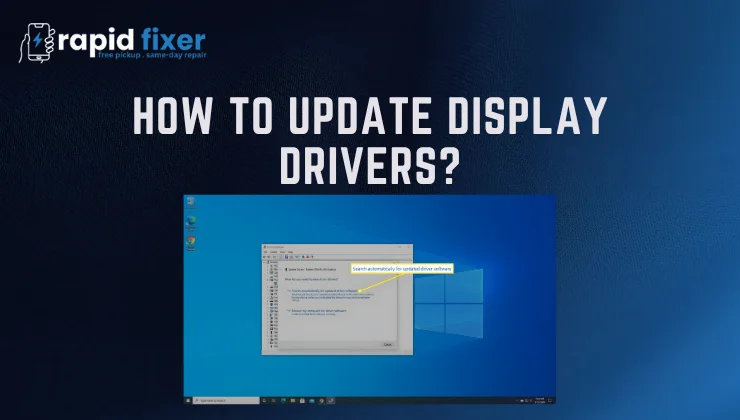
Windows Device Manager offers a non-complicated, inbuilt method of updating drivers. expanded Display adapters Open Device Manager, right-click your graphics card, and choose Update driver. Select Search as a driver default. Windows will search the most recent driver in its database and install it. Although this approach is simple, it might not necessarily offer the latest driver version.
Using Windows Update
New display drivers are occasionally available in windows updates. Any driver updates that are available can be installed by going to Settings and then Windows Update and Checking for updates. This approach is incorporated into Windows and secure, but might not contain any enhancements made by the manufacturers.
Updating from the Manufacturer’s Website
To ensure the most accurate outcomes, you should update drivers on the company webpage. The NVIDIA User can download the drivers through GeForce Experience or on the NVIDIA Driver Downloads page. Radeon Software should be used by AMG users, and Intel users may use the Intel Driver and Support Assistant.
Once downloaded, launch the installer and proceed with the instructions. Reboot your computer to implement the updates. The approach ensures access to the newest features and complete compatibility but involves manual work.
Using Automatic Driver Update Tools
The automatic tools, e.g., Intel support assistant or commercial third-party software, may identify the outdated drivers and update them automatically. Always be careful and only use legitimate software because the programs that are not verified might have malware.
Best Practices When Updating Display Drivers
It is advisable to create a restore point or back up your system before updating your display driver. It is best to close all applications prior to initiating the update and in the event of changing a brand of GPU uninstall the old drivers before starting the update. After the installation, restart your system to finalize changes.
Drivers do not usually need updating as soon as they are released. Taking a couple of days ensures that problems are spotted and addressed. Most users can use regular checks twice or three times a month, but gamers and IT professionals can have monthly updates.
Troubleshooting Common Issues After Updates
Despite the measures, something can go wrong. When your screen sticks or turns black, restart in Safe Mode and undo the driver through the Device Manager. Installation failures could also be fixed using a clean install or a reinstall in Safe Mode. When using external monitors, the issue is that they might need to reconnect the cables or install the driver again. When performance starts to go wrong, it may be time to go back to the last stable version. Manufacturer forums can also be useful with familiar problems and solutions.
Conclusion
Being aware of how to update display drivers is a guarantee that your system would be fast, secure, and visually optimized. Automatic driver updates ensure that you are never faced with display problems, enhance performance and prolong the hardware life. You can keep a working and performing computer system, which is reliable and high-performing, through safe practices, choosing the correct method of updating, and troubleshooting any issues.
FAQs About How to Update Display Drivers?
How often should I update my display drivers?
Two to three months, on average, in the case of average users; one month, in the case of gamers or professionals.
Can updating drivers improve gaming performance?
Yes, new drivers are optimized to achieve higher frame rates and performance.
What happens if I install the wrong driver?
Installation of a wrong driver may result in display errors. Never download any files outside the official site of the manufacturer.
Do laptop users need to update display drivers?
Yes, there is also enhanced performance, stability, and compatibility in laptops.
Are automatic driver update tools safe?
Yes, as long as they are trustworthy, say the official assistant of Intel or a reliable software vendor.