If your laptop screen suddenly flips upside down or you just want to switch your display to portrait mode for reading or multitasking, learning how to rotate screen display on laptop can make a big difference. Whether you’re on Windows 10 or Windows 11, rotating your screen is a very straightforward process that can be done via settings, keyboard shortcuts, or graphics control panels. In this guide, you will find all the methods clearly explained, including those specifically for an HP, Lenovo, and Dell laptops, and a number of troubleshooting solutions for frequently arising problems.
Table of Contents
Understanding Screen Rotation and Its Purpose
Screen rotation enables you to switch between landscape (horizontal) and portrait mode or even upside-down orientation, if you ever need it. And it is not a trick but a useful feature for some scenarios. Programmers and designers often switch into portrait mode while working with long code lines or documents that should not be scrolled, for example. Screen rotation may be required for students and professionals when using their laptops as secondary displays. Convertible 2-in-1 laptops automatically change orientation depending on how you hold the device.
Quick Ways to Rotate Your Laptop Screen
Before we begin with the details, let’s take a look at the three most common and quickest ways to rotate your display: through settings in Windows, keyboard shortcuts, or your graphics control panel.
Using Windows Settings
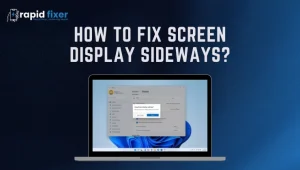
This is the most reliable and universal method. To access it, right-click anywhere on your desktop and select Display settings. Scroll down to Display orientation in the settings window and click on any of the options: Landscape, Portrait, Landscape (flipped), or Portrait (flipped). You will now see a preview of this option, asking if you would like to keep the change. Click Keep changes to confirm. If the display looks incorrect, simply revert within the 15-second timer.
Using Keyboard Shortcuts
If you want to fix your screen instantly, then the keyboard shortcut method is the quickest. You’ll need to press Ctrl + Alt + Up Arrow to restore the normal landscape view, Ctrl + Alt + Down Arrow to flip it upside down, Ctrl + Alt + Left Arrow to rotate 90 degrees left, and Ctrl + Alt + Right Arrow to rotate 90 degrees right. By default, these shortcuts are enabled on most Intel-based laptops. If they do not work, they may be disabled in your graphics settings.
Using Graphics Control Panels
Intel, NVIDIA, and AMD graphics offer more rotation options in their control panel. Right-click on the desktop on an Intel-based system, and open up the Intel Graphics Settings; then, go to Display and select Rotation. Under NVIDIA, open NVIDIA Control Panel and select Display → Rotate display, and for AMD, use AMD Radeon Settings → Display → Rotation. These tools are extremely handy in a multi-monitor setup or when creating custom hotkeys.
How to Rotate Screen on Windows 11 and Windows 10
Steps for rotation on both Windows 10 and Windows 11 are similar, with little difference in interface.
Rotating the Screen on Windows 11
To rotate your screen in Windows 11, open Settings, then go to System → Display. Scroll to Display orientation and select the angle you prefer. Choose Keep changes to confirm your selection.
Rotating the Screen on Windows 10
In Windows 10, right-click on your desktop and select Display settings. Under Display orientation, select from the available options, click Apply, and then click Keep changes to save the new layout. Both versions provide a revert option that will open a 15-second window to revert to the previous rotation if you change your mind.
How to Rotate Screens on Different Laptop Brands
While the general steps may be similar, different brands often provide specific features or shortcuts.
HP Laptops
HP laptops use the same process for rotating in Windows. If you use a 2-in-1 device, like some HP models, your device may automatically enable auto-rotate by default. You can turn it on or off through the Action Center using Rotation lock.
Lenovo Laptops
Models such as Lenovo Yoga and convertible come with built-in sensors that can automatically rotate. If the Lenovo screen does not appear to be rotating, head to Settings → Display → Rotation lock to make sure the lock feature is toggled off. Updating motion sensor drivers may also help resolve detection issues.
Dell Laptops
Most Dell laptops use Intel graphics to rotate the screen. All of the Ctrl + Alt + Arrow variations work on the majority of Dell models, but if one stops working, open the Intel Graphics Command Center, head into Hot Key Manager, and make sure hotkeys are turned on.

How to Use Auto-Rotate on 2-in-1 Laptops
Many modern laptops can double as a tablet, and, by default, these machines will automatically adjust the orientation of their displays based on the orientation of the machine. If auto-rotate stops working, open Action Center, which contains the Rotation lock toggle. If it’s grayed out, either switch your laptop to tablet mode or update your drivers, especially if you’re using motion sensors or accelerometers.
Rotating a Single Display in Multi-Monitor Setups
If you have several monitors connected, you can also rotate a single screen without affecting the others. Just head to Settings → System → Display, click Identify to tell which monitor you are working with, and then select the intended display. From this point on, adjust its Display orientation, and click Keep changes. This feature is great for users who want to view one monitor vertically while keeping others in standard landscape mode.
Fixing Common Rotation Problems
Sometimes, rotation features do not act as they should. Here’s how you can effectively troubleshoot them.
Hotkeys Not Working
If the rotation shortcuts fail, update your graphics drivers and open your Intel, AMD, or NVIDIA control panel to make sure Hotkey functions are enabled. Restart your laptop after making changes.
Missing Orientation Option
If you can’t see the Display orientation option in settings, then your laptop is probably using outdated display drivers. Update your Windows version and graphics drivers using the Device Manager.
Screen Appears Stretched or Blurry
You might experience distortion or other scaling issues after having rotated the screen. To get clarity again at its best, go back to the native resolution of your screen within Display → Scale & layout → Resolution.
Advanced Tips for Better Screen Rotation
Once you get the basics down, there are a few ways to customize how your screen rotates. You can set up custom hotkeys through your Intel or NVIDIA control panel for quicker access, or enable portrait mode to read long documents or scroll through social media with ease. Advanced users might look into third-party software such as DisplayFusion or iRotate, which further extend the capabilities with regards to rotation, orientation, and even layout customization.
Safety and Hardware Considerations
Always keep in mind that not all laptop screens are designed to rotate physically. Never twist or turn a laptop hinge outside its physical design limits. If you use external monitors, make sure your mounting arm can support rotation and the cables can have enough slack to move freely without strain.
Conclusion
Rotating your laptop screen is a simple yet powerful feature that enhances productivity and comfort. Whether you prefer using Windows settings, quick keyboard shortcuts, or your graphics control panel, each method provides an easy way to adjust your view. From fixing an upside-down display to enabling portrait mode, now you know exactly how to rotate screen display on laptop across Windows 10 and 11. Keep this guide bookmarked for the next time your display orientation changes unexpectedly or you want to customize your workspace.
Frequently Asked Questions
How do I rotate my laptop screen back to normal?
Press Ctrl + Alt + Up Arrow, or open display settings and set the orientation to Landscape.
Why did my screen suddenly flip?
Other causes for flipping include accidental use of keyboard shortcuts and the auto-rotation sensors reading motion badly. You can avoid this by disabling rotation shortcuts.
Can I rotate only one monitor?
Yes, open Display settings, choose the monitor you want to rotate, and adjust only that screen’s orientation.
Is rotating my screen safe?
The rotation using software is completely safe; just avoid forcing the laptop hinge to physically turn beyond its supported range.